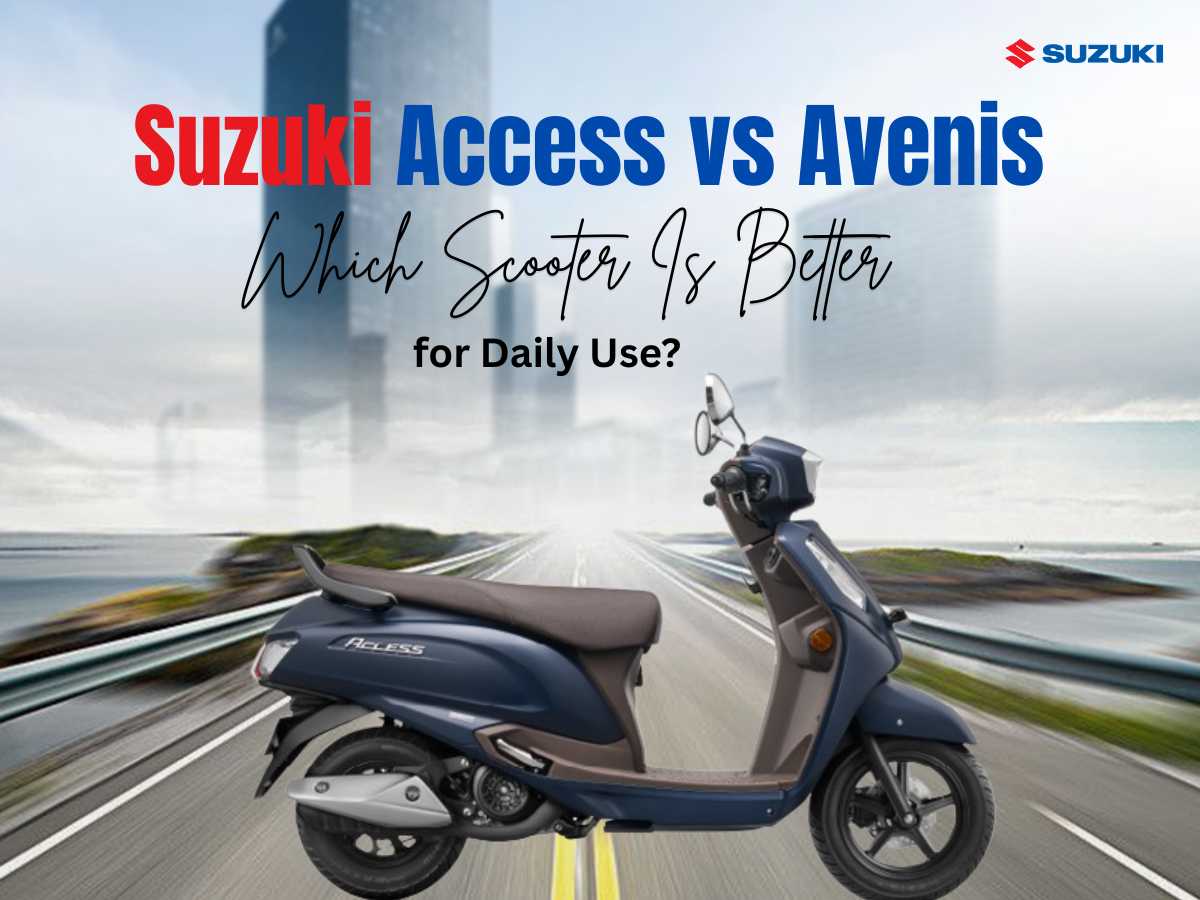
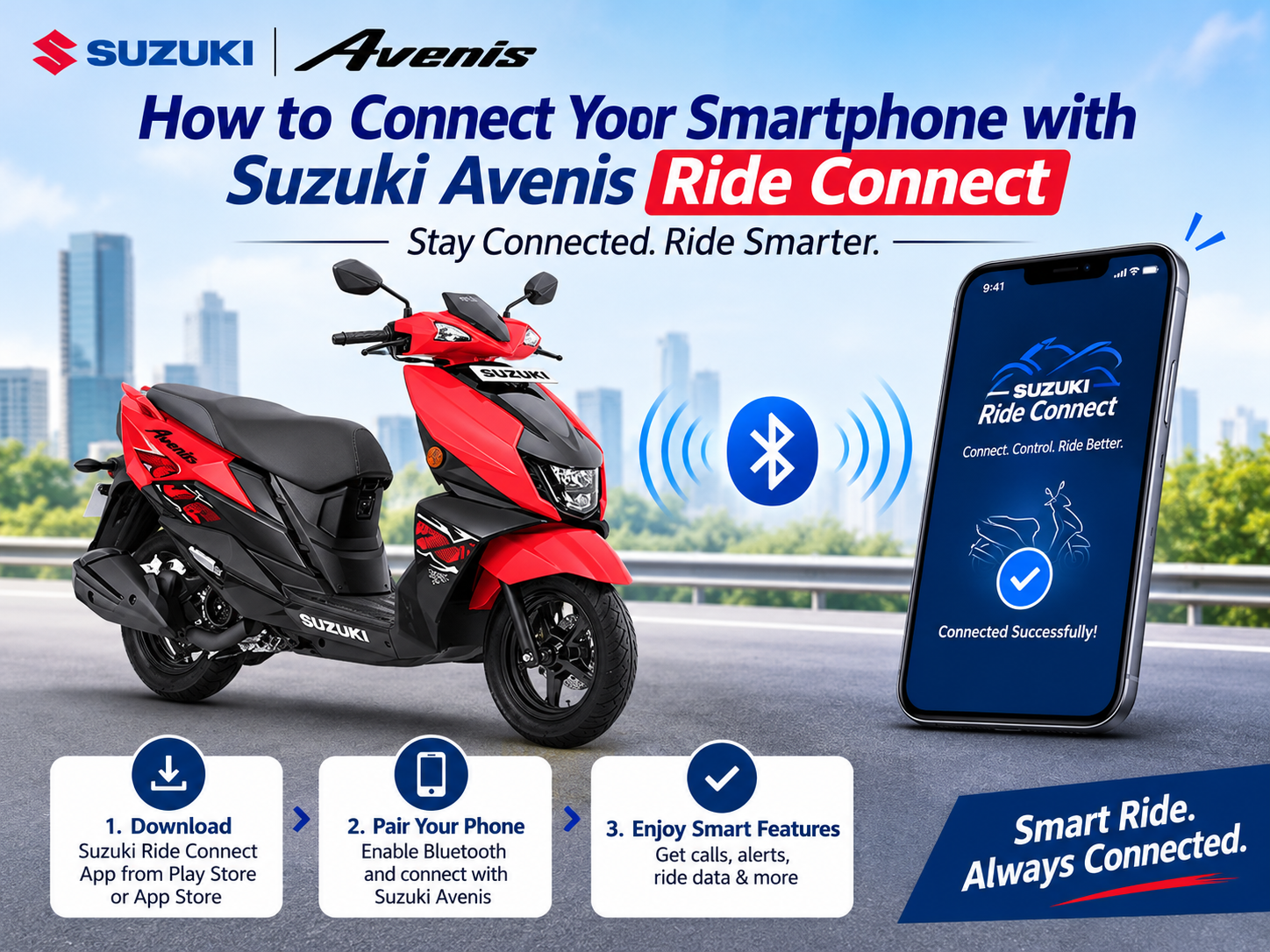
To connect your smartphone to the Suzuki Avenis Ride Connect, install the Suzuki Ride Connect app, grant Bluetooth, location and notification permissions, switch on the scooter’s ignition and your phone’s Bluetooth, then select your Avenis in the app and confirm the pairing request on both the phone and the digital console.
If you ride in Indore, the Suzuki Avenis Ride Connect Edition turns your phone into a navigation and notification partner. This guide from Khandelwal Suzuki walks you through every step, from app download to fixing a stubborn connection.
What Is Suzuki Avenis Ride Connect?
Suzuki Avenis Ride Connect is a Bluetooth-enabled digital console system that links your smartphone to the scooter. Once paired through the Suzuki Ride Connect app, the console can show turn-by-turn navigation, call and message notifications, and your last parked location.
Suzuki Ride Connect works with compatible Android and iOS smartphones. The Bluetooth-enabled digital console is available on the Ride Connect and Race Editions of the Avenis, not on the Standard Edition.
Feature availability can vary by smartphone model, operating system version and the permissions you grant.
Which Suzuki Avenis Editions Support Bluetooth Connectivity?
| Avenis Edition | Bluetooth-Enabled Digital Console | Smartphone Pairing via Ride Connect |
| Standard Edition | No | Not available |
| Ride Connect Edition | Yes | Yes |
| Race Edition | Yes | Yes |
Always confirm edition-specific features with the showroom or the official Suzuki owner’s manual before buying.
What Do You Need Before Pairing Your Phone?
Before pairing, you need a compatible Android phone (Android 10.0 or above) or an iPhone, a Suzuki Avenis Ride Connect or Race Edition, a working internet connection for the app download, and a charged phone with Bluetooth available.
Prepare this short checklist first:
- Compatible edition: Confirm your Avenis has the Bluetooth-enabled digital console.
- Compatible phone: Check that your operating system meets the app’s requirement.
- Charged battery: Keep your phone above 30% so the pairing does not drop midway.
- Stable internet: Use Wi-Fi or mobile data to download the app and create your profile.
- Scooter nearby: Stand beside the Avenis during pairing.
How Do You Connect Your Smartphone to Suzuki Avenis Ride Connect?
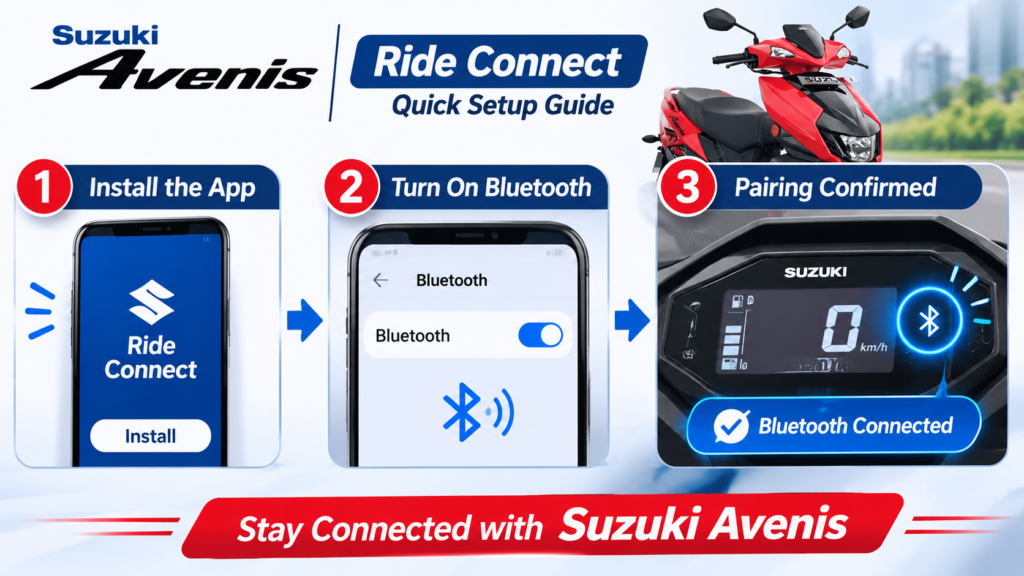
Pairing takes three stages: install and set up the Suzuki Ride Connect app, power on the scooter and phone Bluetooth, then select the Avenis in the app and confirm the request. Most riders finish within a few minutes.
Step 1: Install the Suzuki Ride Connect App
- Download the official app from the Google Play Store (Android 10.0 and above) or the Apple App Store (iOS).
- Open the app and go through the introductory user guide.
- Create your user profile.
- Grant all requested permissions, including location, notifications and Bluetooth.
In practice, skipped permissions cause most pairing failures. Allow each prompt during first launch.
Step 2: Turn On the Scooter and Bluetooth
- Switch on the ignition of your Suzuki Avenis so the digital console powers up.
- Enable Bluetooth on your smartphone.
- Set your phone’s Bluetooth to discoverable or visible if it prompts you.
Step 3: Pair the Device
- Open the Suzuki Ride Connect app and start the pairing process or search for nearby devices.
- Select your Suzuki Avenis from the list of available Bluetooth devices.
- Confirm the pairing request on your phone.
- Check the connection indicator on the scooter’s digital console.
For model-specific instructions, refer to the official Suzuki owner’s manual.
What Can You Do After Connecting Your Phone?
After pairing, the Suzuki Avenis Ride Connect system supports turn-by-turn navigation, call and message notifications, and last parked location. Exact features depend on your smartphone, operating system and the permissions you have granted in the app.
- Turn-by-turn navigation: Set a destination in the app and follow directions on the console, so your phone can stay in your pocket.
- Call and message notifications: Spot incoming alerts on the console without reaching for your phone.
- Last parked location: Find the Avenis in a crowded market or parking lot.
What Should You Check If Your Phone Does Not Connect?
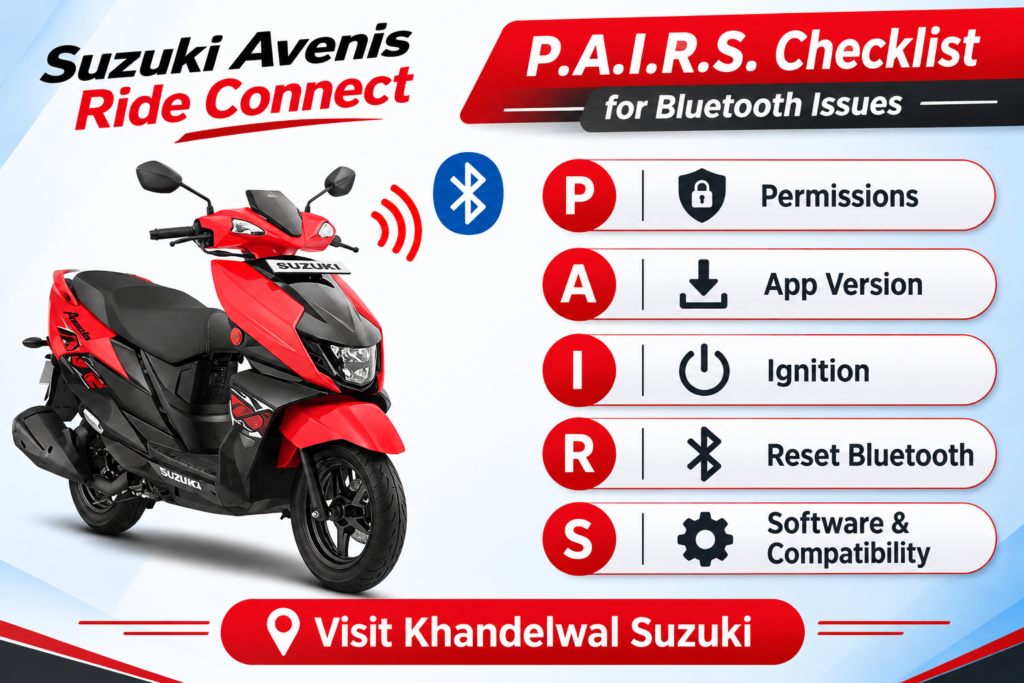
If the phone fails to connect, check permissions, Bluetooth status, ignition state and app version in that order. Most Suzuki Avenis Bluetooth connection problems come from a missing permission or a stale pairing, not from a hardware fault.
The 5-Point “P.A.I.R.S.” Troubleshooting Checklist
Use this framework to diagnose the problem in under two minutes:
| Letter | Check | What to Do |
| P | Permissions | Re-enable location, notifications and Bluetooth for the Ride Connect app in phone settings. |
| A | App version | Update the Suzuki Ride Connect app from the Play Store or App Store. |
| I | Ignition | Keep the scooter switched on so the digital console stays powered. |
| R | Reset Bluetooth | Toggle phone Bluetooth off and on, and remove any old Avenis entry from the saved devices list. |
| S | Software and compatibility | Confirm your phone’s operating system is supported, then restart the phone and retry. |
In practice, step R (removing the old pairing entry) fixes a large share of repeat-connection problems, especially after a phone upgrade.
If the issue continues, [Insert verified troubleshooting steps from the official Suzuki owner’s manual or Suzuki support page + source link], or bring the scooter and phone to the Khandelwal Suzuki service team in Indore.
Why Choose Suzuki Avenis Ride Connect in Indore?
Avenis Riders in Indore deal with dense traffic, unfamiliar routes and frequent parking in busy markets. The Suzuki Avenis Ride Connect Edition addresses these with in-console navigation, alerts and last parked location, all from one Bluetooth pairing.
A contrarian note from the showroom floor: do not judge a connected scooter by its feature list alone. Test the pairing yourself, with your own phone, before you buy.
A live demo shows how smoothly the app connects and whether the console readability suits your daily riding.
Key Takeaways
- Edition matters: Only the Avenis Ride Connect and Race Editions have the Bluetooth-enabled digital console.
- Three stages: Install the app, power on scooter and Bluetooth, then pair and confirm.
- Permissions decide success: Allow location, notifications and Bluetooth.
- Features vary: Availability depends on your smartphone, operating system and permissions.
- Test before you buy: A showroom visit at Khandelwal Suzuki lets you try pairing with your own phone.
FAQs About Connecting Smartphone with Suzuki Avenis Ride Connect
Which phones work with Suzuki Ride Connect?
Suzuki Ride Connect is available for compatible Android and iOS smartphones. Android users need version 10.0 or above. Feature availability can vary by phone model and operating system, so confirm your device at the showroom.
Does the Standard Edition of the Suzuki Avenis have Bluetooth?
No. The Bluetooth-enabled digital console is available on the Ride Connect and Race Editions, not the Standard Edition. Check the edition before purchase if smartphone connectivity matters to you.
Why is my phone not pairing with my Suzuki Avenis?
Common causes include missing app permissions, Bluetooth switched off, the scooter ignition being off, or an outdated app. Re-enable permissions, restart Bluetooth, remove old pairings and update the app, then retry.
What features does Suzuki Avenis Ride Connect offer?
The system offers turn-by-turn navigation, call and message notifications, and last parked location. Availability can vary depending on your smartphone, operating system and the permissions you have granted.
Where can I see the Suzuki Avenis Ride Connect in Indore?
You can visit Khandelwal Suzuki in Indore to see the Avenis Ride Connect Edition, learn about its connected features and book a test ride.
Ready to Experience It? Visit Khandelwal Suzuki in Indore
Visit Khandelwal Suzuki in Indore to explore the Suzuki Avenis Ride Connect Edition, understand its connected features and experience the scooter through a showroom visit or test ride. Bring your smartphone and pair it with the Avenis yourself.
MG Road Branch – 9/1/2, Mahatma Gandhi Road, South Tukoganj, Indore – 452001
Annapurna Road Branch – 7-A, Annapurna Road, Opposite Dutt Mandir, Vaishali Nagar, Indore – 45200
Airport Road Branch – 113, Manpasand Colony, Airport Road, Kalani Nagar, Indore – 452006